This plugin provides a convenient web interface for managing Python virtual environments and deploying Python applications directly from DirectAdmin.
Features
- Create and delete Python applications
- Configure environment variables
- Soft and hard (import) rebuild of virtual environments
- Switch Python versions easily
- Import virtual environments from other providers
- Execute
.pyscripts - Run
pippackage installations from the UI
See screenshots below.
Prerequisites
Before using the plugin, you should have multiple Python versions available and Phusion Passenger installed.
Below is a quick guide to launching your first Python application with the plugin.
Installation has been tested on RHEL 8 and RHEL 9 derivatives, including AlmaLinux and Rocky Linux.
Installation
You will receive the plugin download URL in your activation email.
In DirectAdmin, go to: Extra Features → Plugin Manager
Install the plugin.
Log in as admin and open the plugin. Initially, you should see configuration details, but no installed Python versions.
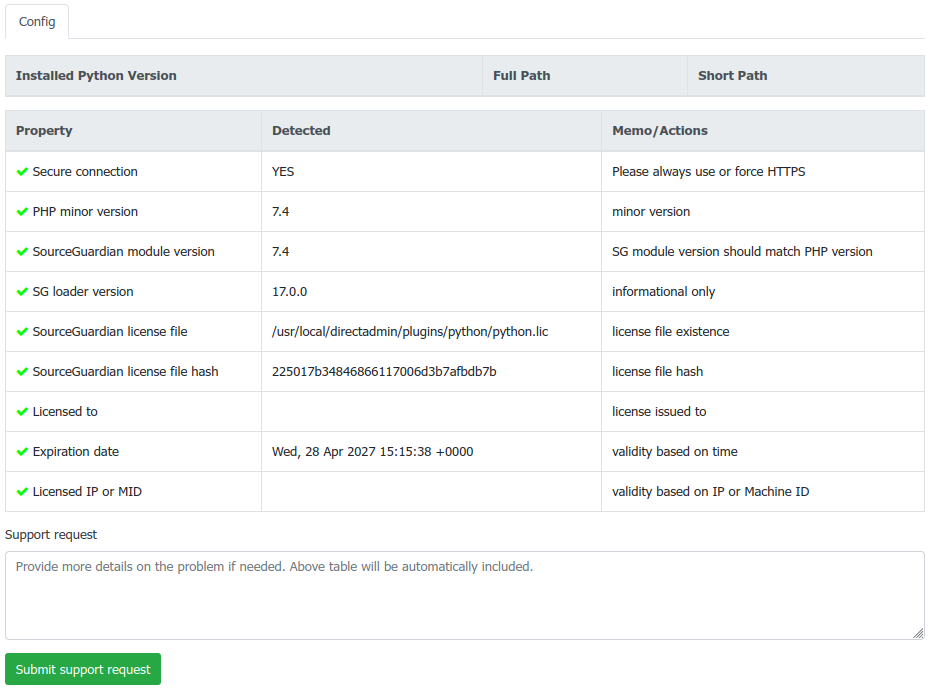
Installing Python Versions with PyEnv
The plugin includes a helper script:
PyEnv supports over a thousand Python versions:
To choose which versions to install:
Uncomment or add the versions you need, or simply keep the defaults.
Then run:
Installation may take several minutes.
Once completed, upgrade pip versions if recommended by the installer.
Refresh the Config tab in the plugin. Installed Python versions should now appear and be ready for use.
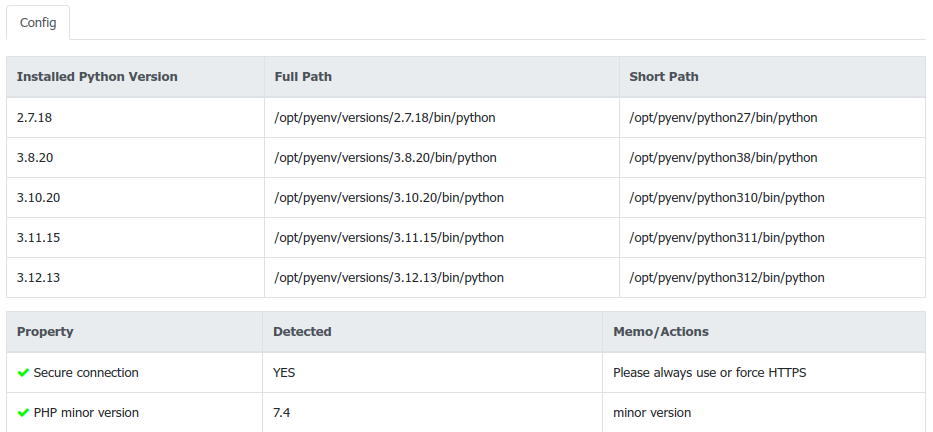
Installing Passenger
Install Passenger using the included script:
Passenger can also be used for Node.js and Ruby applications.
The installation may take a few minutes. Warnings during the process are usually normal.
If installation fails, run it in debug mode:
The installer will apply a patch that places spawned processes in user’s cgroups splice so that DirectAdmin resource limits cover Passenger’s children.
CloudLinux Compatibility
The plugin can detect and import virtual environments created under CloudLinux.
By default, it uses:
This can be changed in:
Creating Your First Python Application
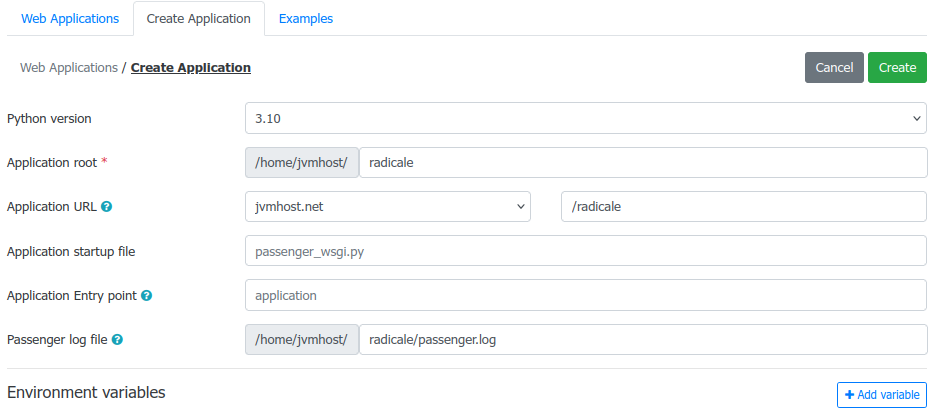
Create a new application from the plugin interface.
Typically, you only need to configure:
- Application path
- Public path
- Log path
- Python version
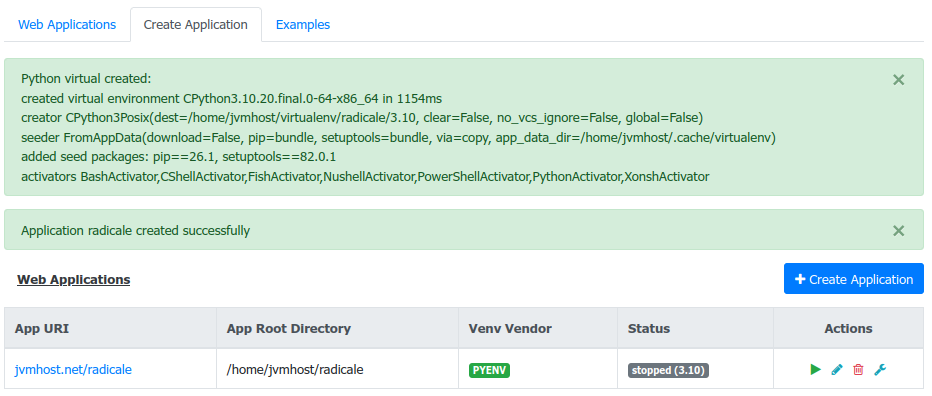
Virtual Environment Ready
After creation, the plugin prepares a virtual environment and a starter application.
You can already visit the assigned URL and see the default response.
Example Commands
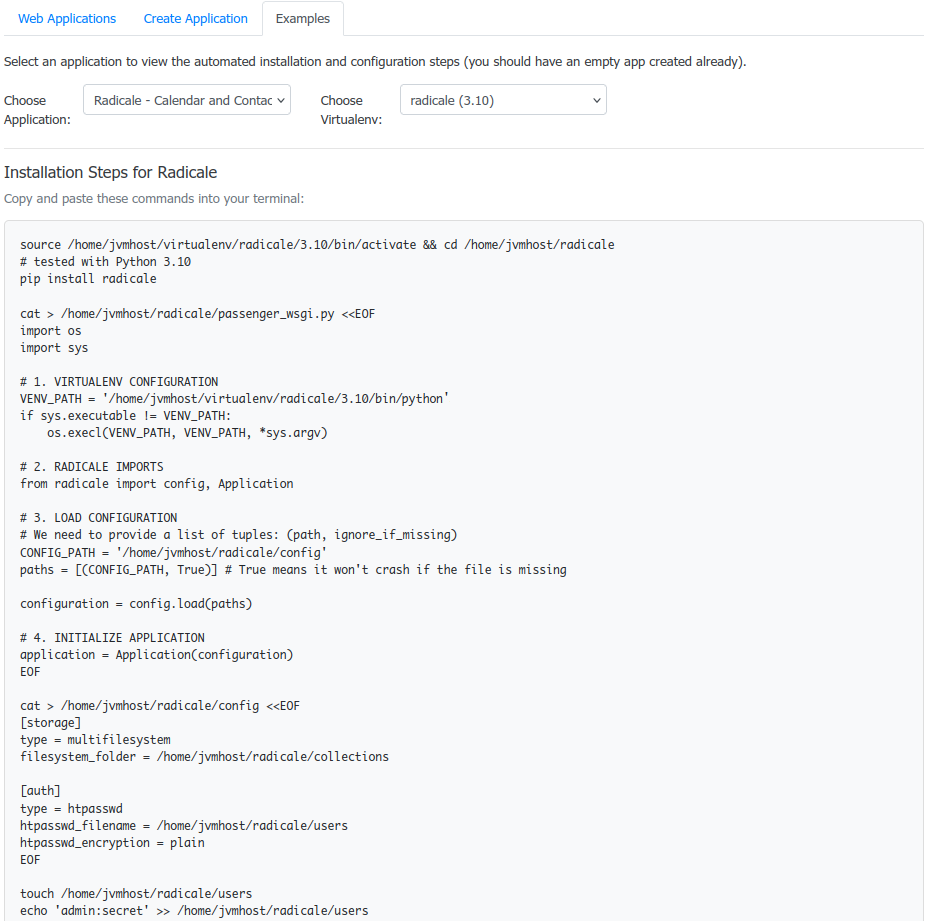
Use the Examples tab to quickly install popular Python applications.
For example, choose Radicale and select the newly created virtual environment to generate customized installation commands.
Starting the Application
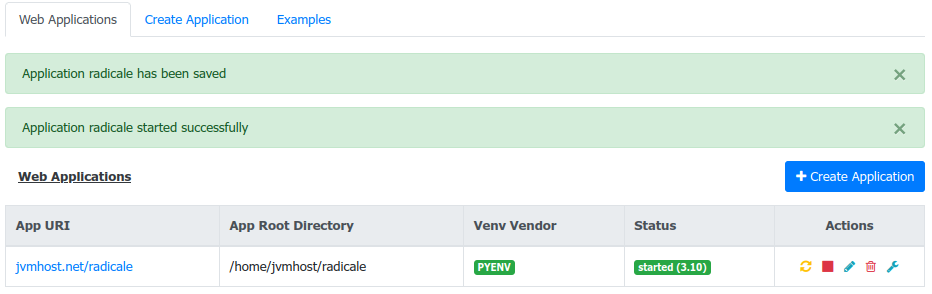
Start the app by:
or use the plugin’s Start/Stop controls.
The Start/Stop function also enables or disables .htaccess redirection to Passenger.
Passenger processes usually remain active for some time after use and shut down automatically after inactivity.
Accessing the Application
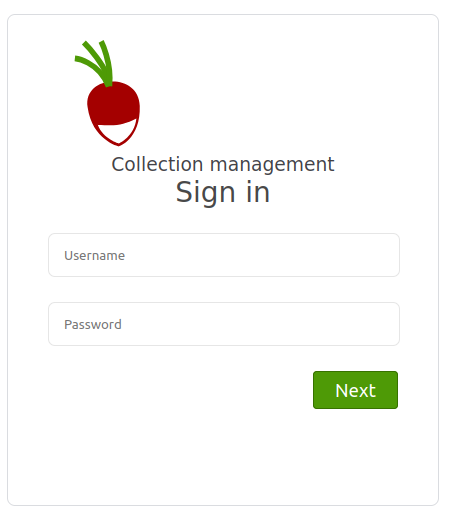
Visit your application’s URL.
For Radicale, log in using the credentials shown in the example.
Rebuild modes
Each application has up to three rebuild controls in the Actions column. A rebuild recreates the virtualenv from scratch and reinstalls packages — the app itself and its files are never touched.
🔴 Rebuild from imported packages
Visible only when an application was previously imported from CloudLinux (or another provider). During import a snapshot of the original package list is saved as exported_requirements.txt. This file is never overwritten — it is a permanent restore point.
Use this when: a strict or loose rebuild has broken something and you want to return to the exact state the application was in when it was first imported.
Packages are reinstalled at the exact versions recorded in exported_requirements.txt.
🟠 Rebuild — exact versions
Available for every application at any time. Before rebuilding, a snapshot of the currently installed packages with their exact versions is saved as requirements.last_strict_rebuild_try, overwriting any previous snapshot from this mode.
Use this when: you want to do a clean rebuild without changing anything — fixing a corrupted virtualenv while keeping every package at its current version.
Packages are reinstalled at exact versions taken from the live environment at the moment the rebuild is triggered.
🟢 Rebuild — latest compatible
Available for every application at any time. Before rebuilding, a snapshot of the currently installed packages (with versions, for reference) is saved as requirements.last_loose_rebuild_try, overwriting any previous snapshot from this mode.
Use this when: you want to refresh packages to the latest versions that pip can resolve — for example after a Python point-release, or to pick up security patches automatically.
Packages are reinstalled without version constraints, allowing pip to resolve the newest compatible versions.
Snapshot files
All snapshot files are stored inside the application’s virtualenv directory and can be inspected or downloaded from the file manager:
| File | Written by | Contents |
|---|---|---|
exported_requirements.txt |
Import (once, never overwritten) | Exact versions from original environment |
requirements.last_strict_rebuild_try |
🟠 Rebuild — exact versions | Exact versions at time of last strict rebuild |
requirements.last_loose_rebuild_try |
🟢 Rebuild — latest compatible | Versions recorded before last loose rebuild |
If a loose rebuild produces an incompatible result, use 🟠 to roll back to the last known-good exact state, or 🔴 to go all the way back to the imported baseline.
Logs
Global Passenger log:
Per-application logs are stored in the path configured in application settings.
Coming Next
A dedicated Node.js plugin is planned next.
Notes
Language Translations
To add your own language:
- Copy an existing language directory from:
Rename it to your language code.
Translate strings inside:
- For translating the menu, follow instructions in the
HOWTOfile inside thelangdirectory.
Feedback
Feature suggestions and feedback are welcome in the comments section or via the contact form available on the plugin’s Config page.