This plugin provides a convenient DirectAdmin interface for creating, configuring, rebuilding, and running Node.js applications with Phusion Passenger.
Features
- Create and delete Node.js applications
- Install and use Node.js versions from a system-wide NVM installation
- Switch the Node.js version used by an application
- Configure application root, URL, startup file, Passenger log file, and application mode
- Set
NODE_ENVand custom environment variables - Start, stop, and restart applications from DirectAdmin
- Rebuild a Node.js environment and run
npm installornpm ci - Edit configuration files such as
package.jsonfrom the plugin UI - Generate example setup commands for Express, Strapi, and Next.js applications
See screenshots below.
Prerequisites
Before using the plugin, you should have Phusion Passenger installed and configured for your web server.
If you already installed and configured the Python plugin on the same server, Passenger should already be available because both plugins ship the same Passenger installer.
The plugin expects Node.js versions to be available under:
Below is a quick guide to launching your first Node.js application with the plugin.
Installation has been tested on RHEL 8 and RHEL 9 derivatives, including AlmaLinux and Rocky Linux.
Installation
You will receive the plugin download URL in your activation email.
In DirectAdmin, go to: Extra Features -> Plugin Manager
Install the plugin.
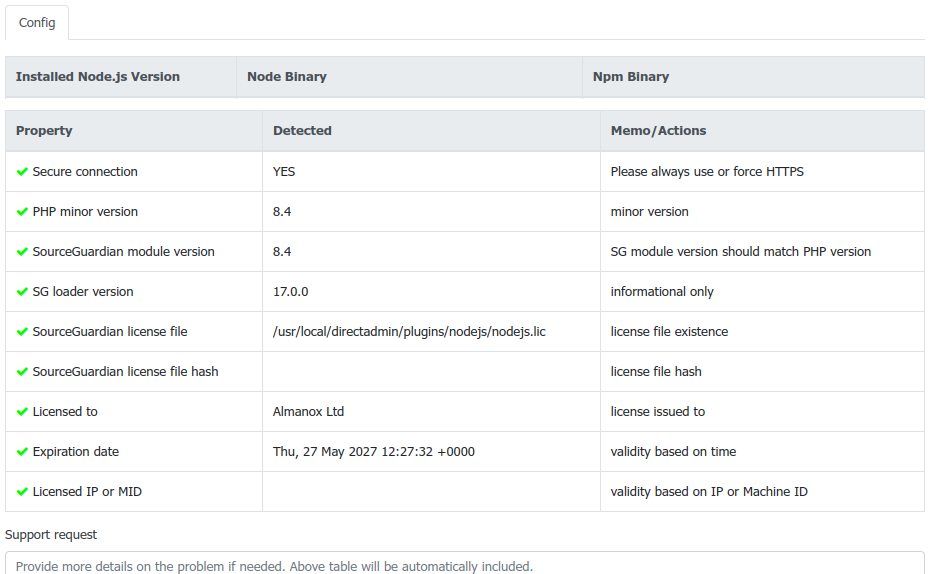
Log in as admin and open the plugin. Initially, the Config tab shows configuration and license checks. If NVM has not been installed yet, the Node.js versions table will be empty.
Installing Passenger
The plugin includes a Passenger installer:
Use this script only when Passenger is not installed yet, or when Passenger from another vendor, such as CloudLinux, has been removed and you need to install the plugin-provided Passenger build.
The installer downloads and builds Passenger, applies the patch files included in the plugin’s bin directory, writes the Apache Passenger configuration, restarts Apache, and adds DirectAdmin template hooks for Passenger support.
If Passenger is already working on the server, you normally do not need to run this script.
If installation fails, run it in debug mode:
Installing Node.js Versions with NVM
The plugin includes a helper script:
The script installs NVM system-wide in /opt/nvm and installs the default Node.js major versions configured inside the script.
To choose which Node.js versions to install:
Adjust the VERSIONS value as needed. The default script installs Node.js 10, 18, 20, 22, and 24.
Then run:
Installation may take several minutes.
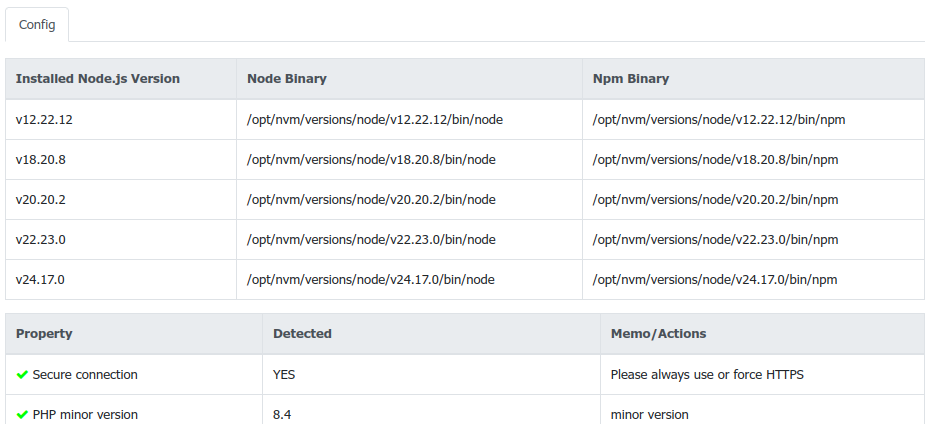
Refresh the Config tab in the plugin. Installed Node.js versions should now appear with their node and npm binary paths.
Creating Your First Node.js Application
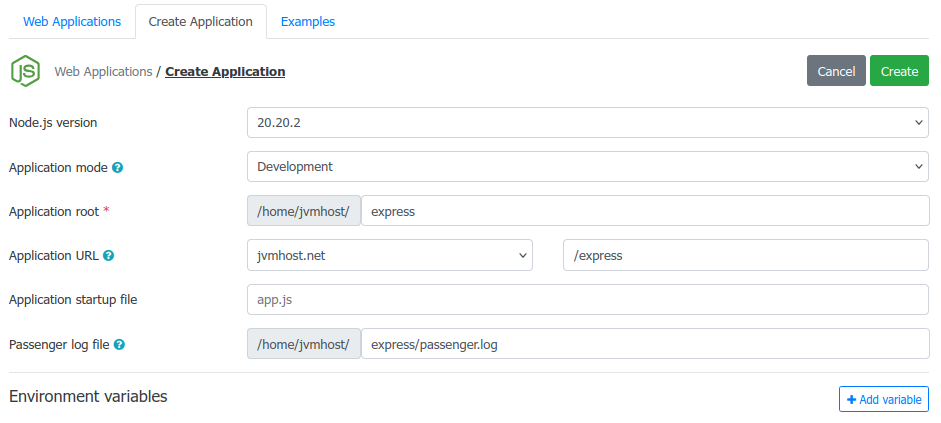
Create a new application from the plugin interface.
Typically, you configure:
- Node.js version
- Application mode, which sets
NODE_ENVtodevelopmentorproduction - Application root
- Application URL
- Startup file, for example
app.js - Passenger log file
- Optional environment variables
Node Environment Ready
After creation, the plugin prepares:
- An application directory under
/home/USER/APP_ROOT - A starter
app.js publicandtmpdirectories- A Node.js environment under
/home/USER/nodevenv/APP_ROOT/VERSION - A
currentsymlink for Passenger - Passenger directives in
.htaccess
The generated environment includes wrapper scripts for node, npm, and npx. These wrappers load NODE_ENV and custom environment variables from ~/.cl.selector/node-selector.json.
Managing and Rebuilding Applications
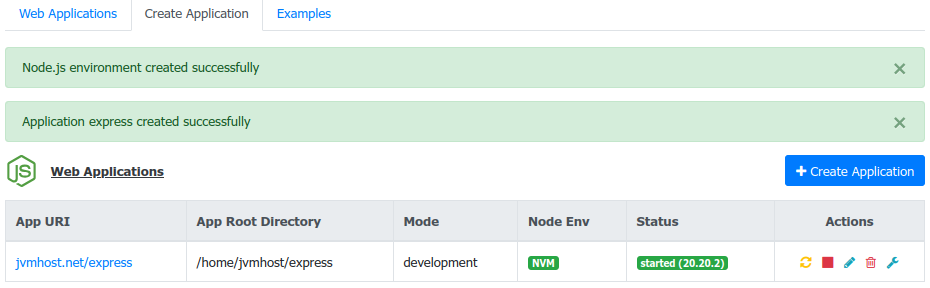
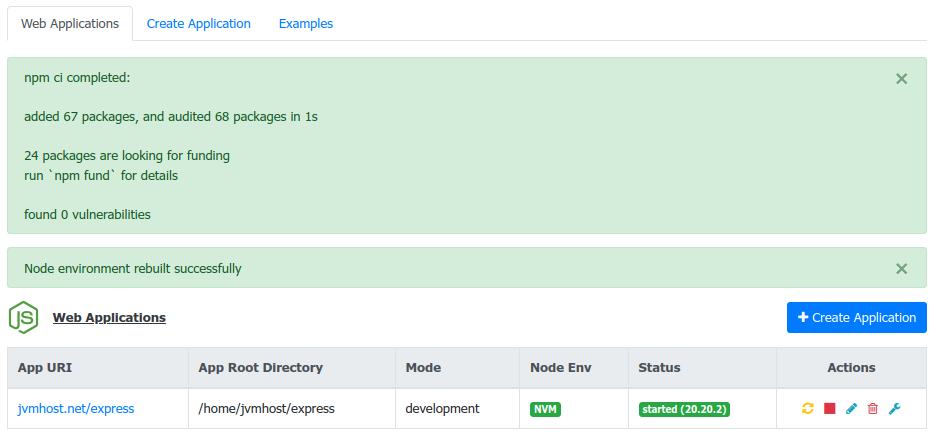
The application list shows the app URL, root directory, mode, environment vendor, status, Node.js version, and action buttons.
You can edit the properties as on the below screenshot.
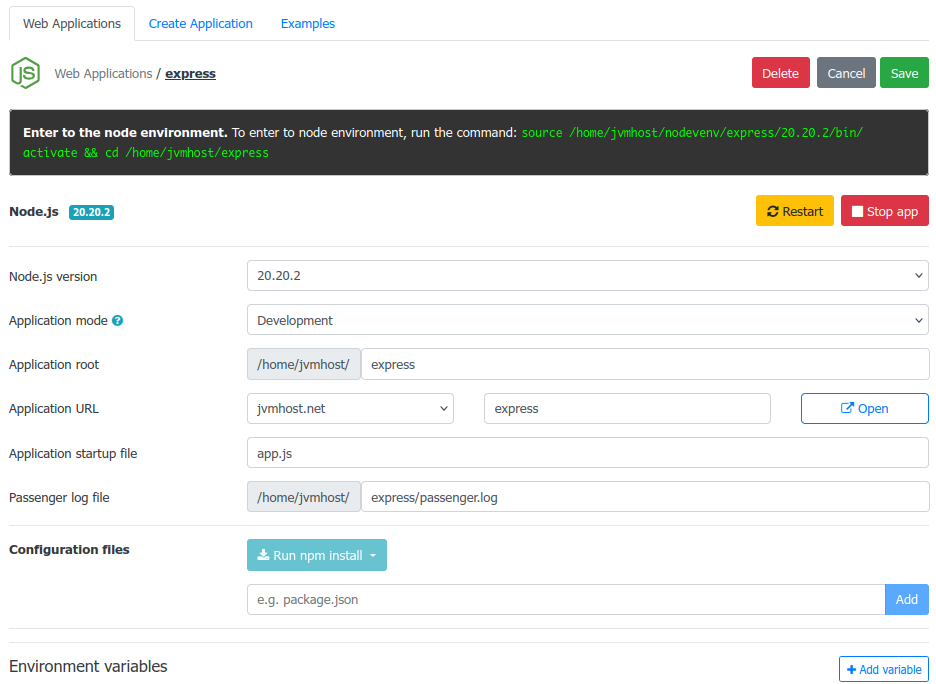
Use the actions to start, stop, restart, edit, delete, or rebuild the application environment. Rebuilding recreates the Node.js environment and runs npm ci when a package-lock.json exists, otherwise it runs npm install.
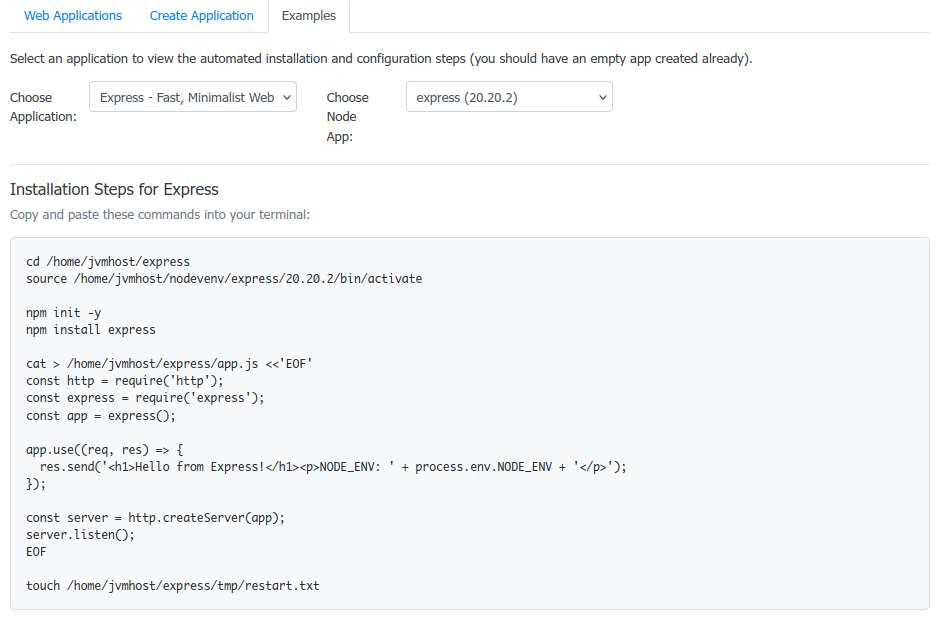
Example Commands
Use the Examples tab to generate installation commands for a created application.
The plugin currently includes examples for:
- Express
- Strapi
- Next.js
Choose the example application and the Node.js app you created. The plugin generates commands customized for that app’s path, Node.js environment, and URL.
Starting the Application
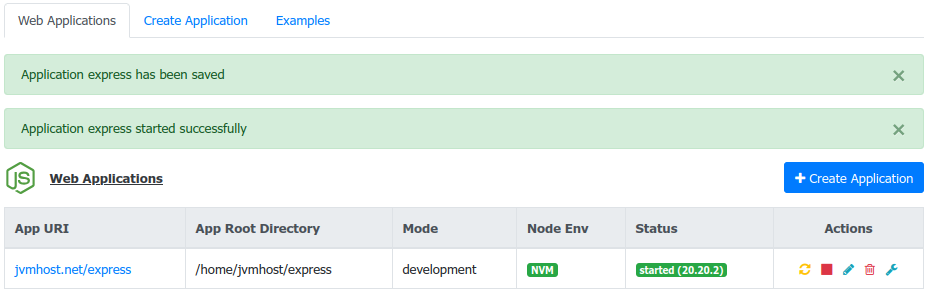
Start the app from the plugin’s Start control.
You can also restart an already running Passenger app by touching the restart file:
The plugin’s Start/Stop controls add or remove Passenger directives in .htaccess. Passenger processes may remain active for a short time after use and shut down automatically after inactivity.
Accessing the Application
Visit your application’s URL.
For the default starter app, you should see a Node.js readiness page showing the Node.js version, NODE_ENV, working directory, last restart time, and any custom variables configured in the plugin.

Command Line Access
Each application’s edit screen shows the command needed to enter its Node.js environment:
Use this shell when you want to run npm, npx, build commands, or framework-specific setup commands manually.
Logs
Global Passenger log:
Per-application logs are written to the Passenger log file configured in the application settings.
Notes
Language Translations
To add your own language:
- Copy an existing language directory from:
Rename it to your language code.
Translate strings inside:
- For translating the menu, follow instructions in the
enhanced_skin_HOWTOfile inside thelangdirectory.
Feedback
Feature suggestions and feedback are welcome in the comments section or via the contact form available on the plugin’s Config page.