This plugin provides a convenient DirectAdmin interface for creating, configuring, and running ASP.NET Core applications with Phusion Passenger.
Features
- Create, edit, start, stop, restart, and delete ASP.NET Core applications
- Run framework-dependent apps with
/usr/bin/dotnet App.dll - Run self-contained apps directly through their executable apphost
- Autodetect runtime metadata from
*.runtimeconfig.json - Select ASP.NET Core runtime policy, currently
auto,8.0, or10.0 - Configure application root, domain, URL path, startup file, Passenger log file, and startup timeout
- Set custom environment variables for the generated app launcher
- Automatically export
ASPNETCORE_URLSfrom the Passenger-provided port - Automatically export
ASPNETCORE_PATHBASEfor sub-URL apps such as/cms - Edit application configuration files from the plugin UI
- Generate example deployment commands for hello-world, nopCommerce, and Orchard Core applications
- Honor DirectAdmin user resource limits (like all our Passenger dependent plugins)
See screenshots below.
Prerequisites
Before using the plugin, Phusion Passenger must be installed and configured for Apache.
If the Python or Node.js DirectAdmin plugin has already installed Passenger on the same server, Passenger may already be available. This ASP.NET Core plugin uses Passenger’s generic app support and a generated launcher script.
The Passenger build used by this plugin must allow these directives from .htaccess:
PassengerAppRoot
PassengerBaseURI
PassengerAppType
PassengerAppStartCommand
PassengerStartTimeout
PassengerAppLogFile
The plugin includes the same Passenger patching approach used by the Python and Node.js plugins. In particular, PassengerAppStartCommand and PassengerStartTimeout must be usable from .htaccess.
ASP.NET Core host runtimes are needed for framework-dependent applications. The SDK is only needed when users build or publish applications on the server.
Installation has been tested on RHEL 8 and RHEL 9 derivatives, including AlmaLinux and Rocky Linux.
Installation
You will receive the plugin download URL in your activation email.
Log in to DirectAdmin as admin.
Go to: Extra Features -> Plugin Manager
Install the plugin.
From the server shell, run the Passenger and .NET helper scripts described below.
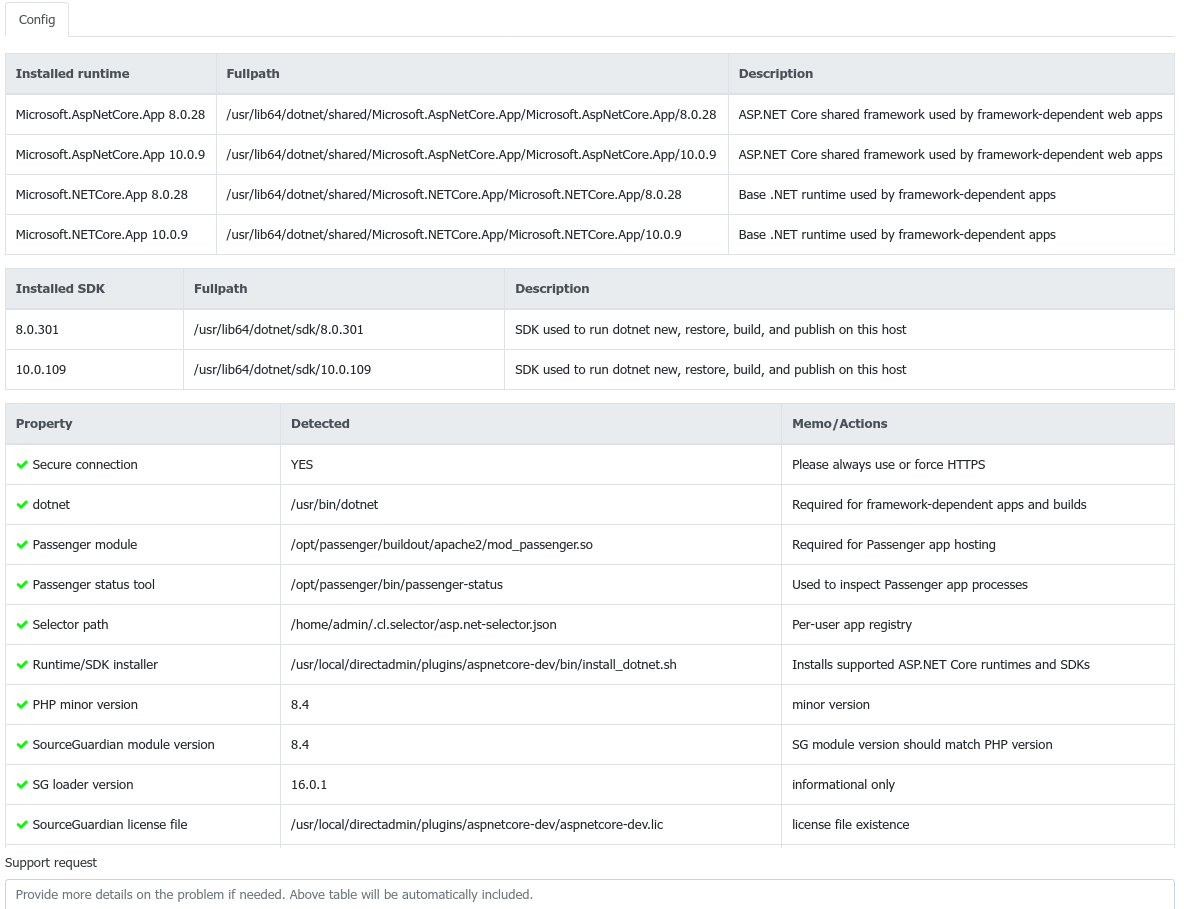
Return to DirectAdmin as admin and open the plugin. The Config tab should now show configuration checks, license checks, available ASP.NET Core runtimes, and available .NET SDKs.
Installing Passenger
The plugin follows the same Passenger model as the Python and Node.js plugins. If Passenger is not installed yet, run the plugin-provided Passenger installer:
Use this script only when Passenger is not installed yet, or when Passenger from another vendor has been removed and you need the plugin-provided Passenger build.
The installer builds Passenger, applies the plugin patch files, writes Apache Passenger configuration, restarts Apache, and enables the DirectAdmin template hooks needed for Passenger support.
If Passenger is already working on the server with the required .htaccess directives enabled, you normally do not need to run this script.
If you modify Passenger patch files later, rebuild Passenger and restart Apache:
/opt/passenger/bin/passenger-install-apache2-module --auto --languages ruby,python,nodejs
httpd -t
systemctl restart httpd
Installing .NET Runtimes and SDKs
The plugin includes a helper script:
Run it after installing the plugin:
The script installs Microsoft dotnet-host, ASP.NET Core shared runtimes, and matching SDK packages for the supported side-by-side versions:
8.0
10.0
At the end it prints both installed runtimes and installed SDKs:
Use this installer for framework-dependent apps and for users who need to build or publish applications on the server. Self-contained ASP.NET Core apps include their runtime and do not require a host runtime or SDK just to start.
After Passenger and .NET are installed, the plugin Config page should show the populated runtime and SDK tables:
Creating an ASP.NET Core Application
Create a new application from the plugin interface.
Typically, you configure:
- ASP.NET Core runtime policy:
auto,8.0, or10.0 - Application root, for example
/home/USER/myapp - Domain and optional URL path, for example
/cms - Startup file, for example
MyApp.dllorNop.Web - Passenger startup timeout
- Passenger log file
- Optional environment variables
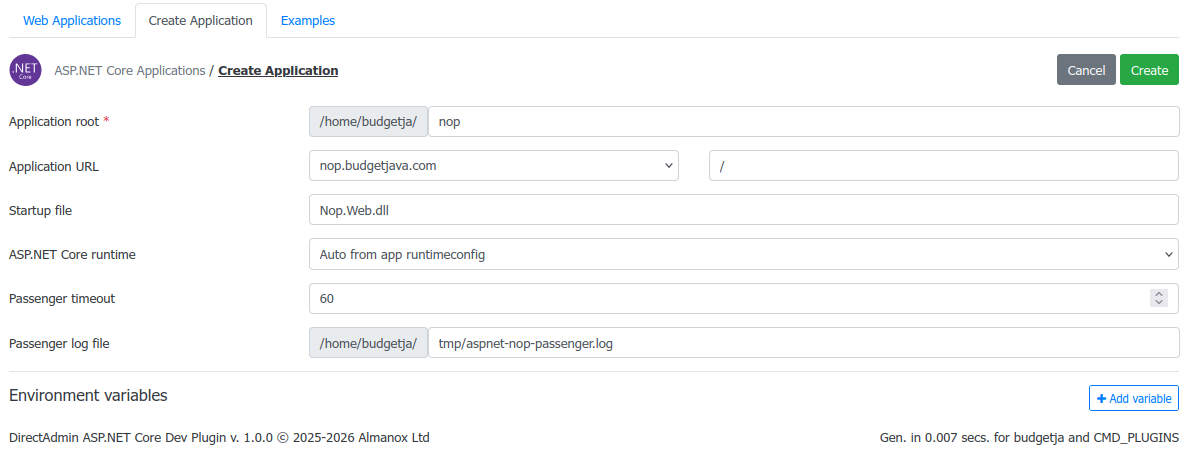
The plugin creates the app directory if it does not already exist. If no startup file exists yet, the app can be saved in a stopped state so the user can publish or upload files later.
Editing an Application
The edit page exposes the same application settings and shows detected runtime metadata.
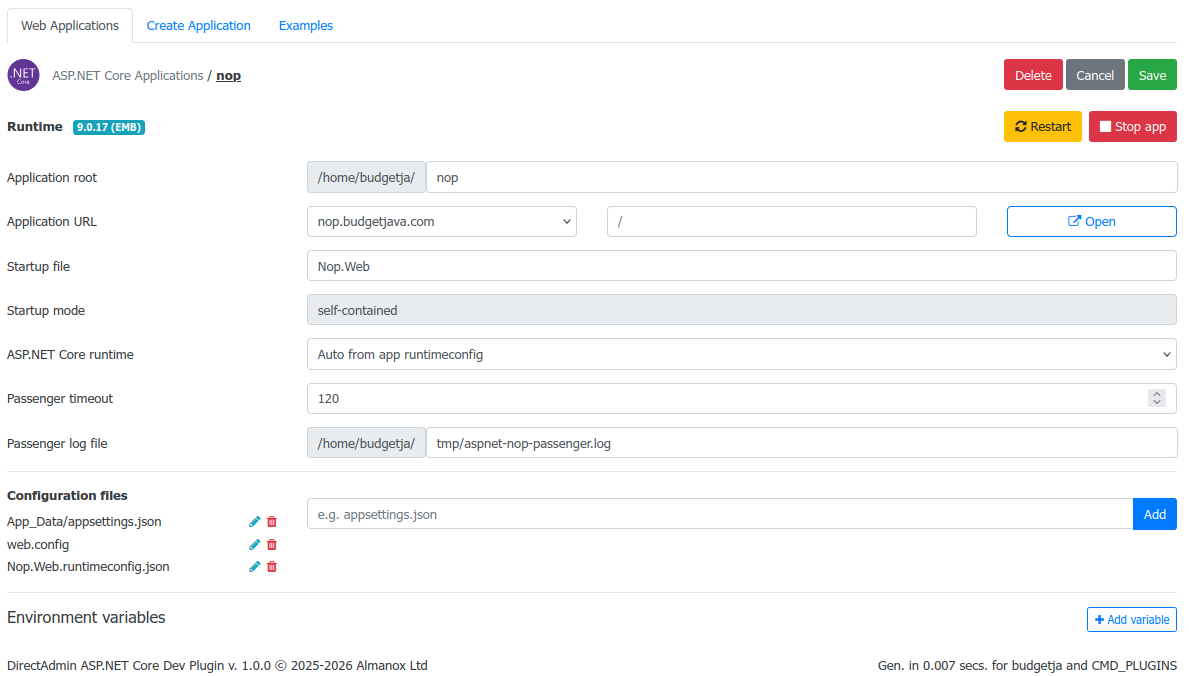
Runtime display uses this convention:
8.0.0 (HOST)means the app targets a host-provided shared runtime and is started with/usr/bin/dotnet App.dll.9.0.17 (EMB)means the runtime is embedded in a self-contained package and the plugin starts the executable apphost directly.
The app’s *.runtimeconfig.json is the authoritative source for the target runtime. The selector JSON stores detected metadata for display and validation.
Startup Detection
The plugin distinguishes framework-dependent and self-contained deployments.
For framework-dependent apps, the startup file is a DLL:
App.dll -> App.runtimeconfig.jsonThe generated launcher starts it with the host dotnet binary:
For self-contained apps, the startup file is the executable apphost:
Nop.Web -> Nop.Web.runtimeconfig.jsonThe generated launcher starts it directly:
The plugin detects self-contained apps by checking includedFrameworks in runtimeconfig.json and bundled runtime files such as libcoreclr.so, libhostfxr.so, or libhostpolicy.so. If a user enters App.dll for a self-contained deployment and a matching executable App exists, the plugin normalizes the startup file back to App.
Passenger Launcher
Passenger provides a dynamic local port. The plugin generates a user-owned launcher script in the app root and maps that port to ASP.NET Core:
#!/bin/bash
set -euo pipefail
cd /home/USER/app
PORT_VALUE="${1:-${PORT:-}}"
export ASPNETCORE_ENVIRONMENT="${ASPNETCORE_ENVIRONMENT:-Production}"
export ASPNETCORE_URLS="http://127.0.0.1:${PORT_VALUE}"
exec /usr/bin/dotnet /home/USER/app/App.dll
For subpath apps, such as https://example.com/cms/, the launcher also exports:
The ASP.NET Core application must call UsePathBase or otherwise be configured for that public base path. Apps that assume they own / are usually better hosted on a subdomain.
Managing Applications
The application list shows the app URL, root directory, status, runtime, and action buttons.
Use the actions to start, stop, restart, edit, or delete the application.
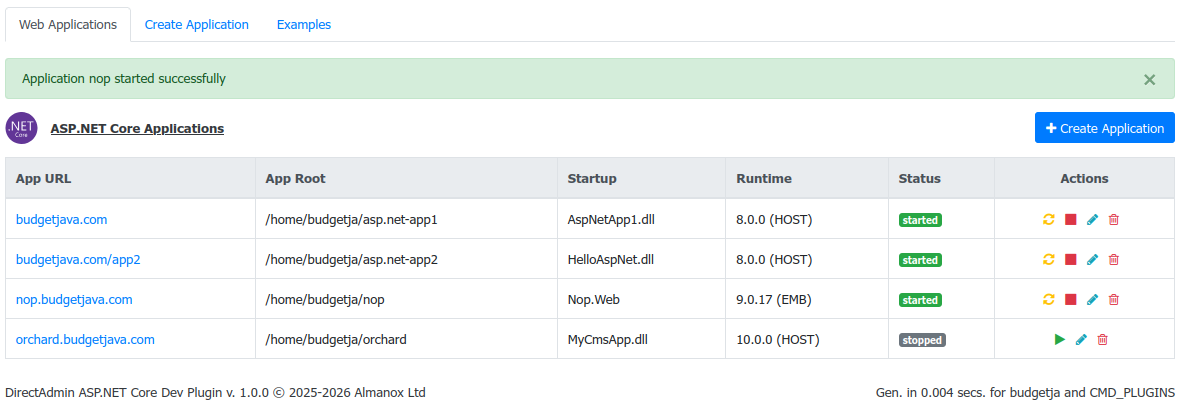
Start writes the Passenger .htaccess block, generates passenger-start.sh, creates tmp/, and moves a default index.html aside in the target document root if it would mask the Passenger app.
Restart touches:
Stop removes the ASP.NET Core Passenger block from .htaccess. Passenger processes may remain active briefly and shut down automatically after inactivity.
Example Commands
Use the Examples tab to generate deployment commands for an existing application.
The plugin currently includes examples for:
- ASP.NET Core hello-world app built with
dotnet new web - nopCommerce no-source Linux x64 package
- Orchard Core CMS generated from
OrchardCore.ProjectTemplates
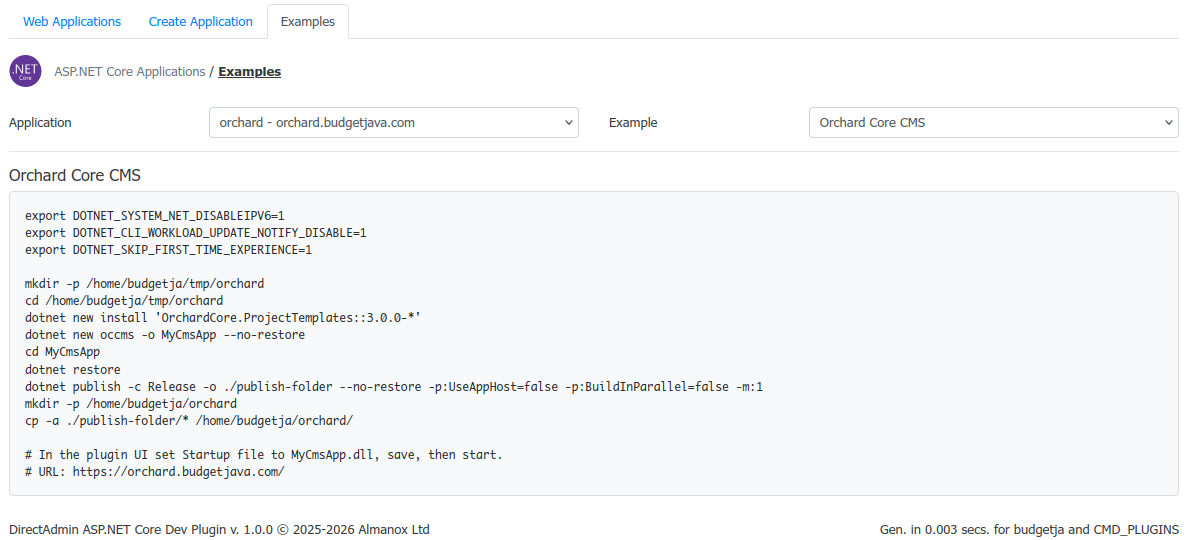
The examples are customized with the selected app root, domain, and URL path.
For framework-dependent examples, the publish command uses:
This skips the extra apphost executable because the plugin starts framework-dependent apps with /usr/bin/dotnet App.dll.
On constrained shared-hosting accounts, the examples also show a single-threaded publish profile:
This can help avoid MSBuild copy-thread failures under strict cgroup limits.
Accessing a Hello-World Application
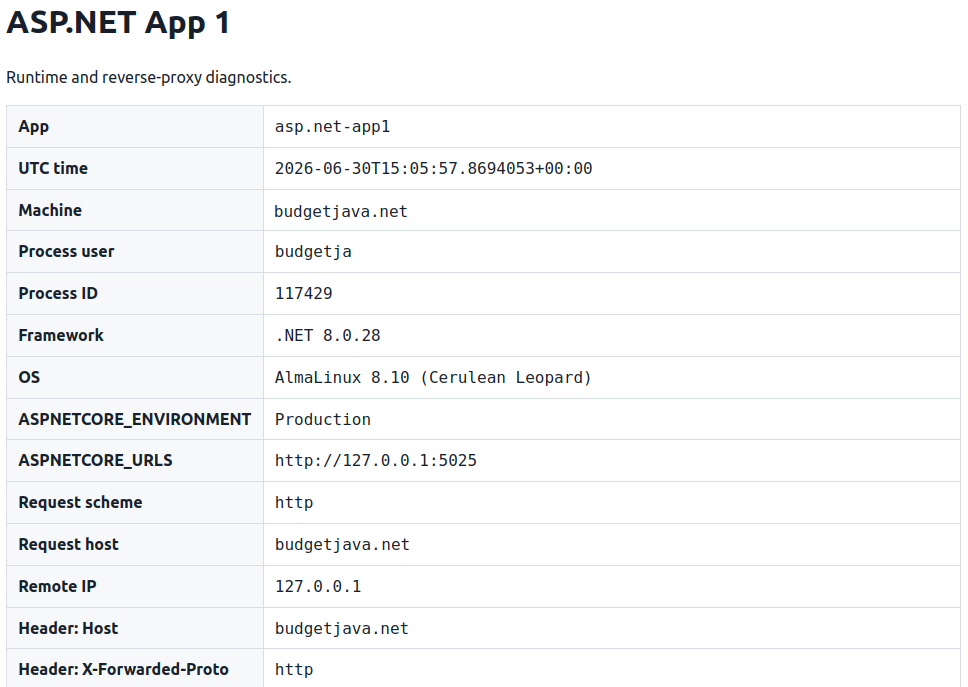
After starting the hello-world example, visit the configured URL.
The generated sample app displays runtime and request information useful for verifying Passenger, path-base handling, and environment variables.
Hosting nopCommerce
The plugin also supports self-contained vendor applications such as the nopCommerce Linux x64 no-source package.
For nopCommerce, the startup file is normally:
Nop.Webnot:
Nop.Web.dllThe package includes both files, but Nop.Web is the executable apphost and is the intended self-contained entry point. The plugin records dotnet_path as null for this mode.
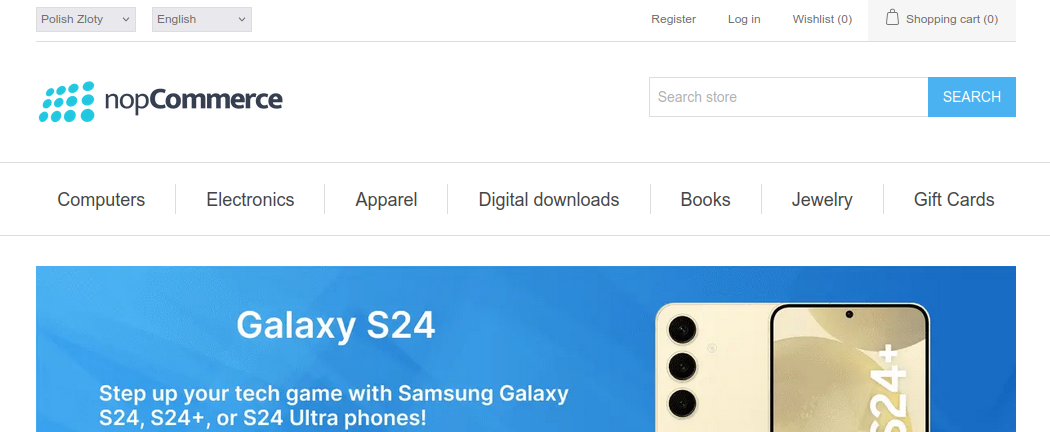
Applications like nopCommerce often expect to run at the domain root. If an application redirects /subpath to /install or otherwise assumes /, use a subdomain instead of fighting the app’s root-URL assumptions.
Selector JSON
Application metadata is stored in:
/home/USER/.cl.selector/asp.net-selector.jsonThis mirrors the Python and Node.js plugin selectors. Each top-level key is an application id.
Important fields include:
app_status: whether the Passenger block is presentdomainandapp_uri: public routing targetapp_root: application directory under/home/USERstartup_file: DLL for framework-dependent apps or executable apphost for self-contained appsdotnet_path:/usr/bin/dotnetfor DLL apps,nullfor self-contained apphost appsaspnetcore_version: runtime policy, usuallyautodotnet_runtime_versionandaspnetcore_runtime_version: detected metadata from runtimeconfigpassenger_start_timeout: useful for large apps such as nopCommerceenv_vars: custom environment variables emitted by the launcher
Logs
Global Passenger log:
Per-application logs are written to the Passenger log file configured in the application settings, commonly:
You can inspect Passenger state with:
Command Line Notes
Users can still build or publish apps manually over SSH or a web terminal.
For example, a framework-dependent publish normally looks like:
global.json is optional. It controls which installed SDK is used by commands such as dotnet new, dotnet restore, and dotnet publish; it does not select the runtime used by Passenger after publish.
Use global.json when a build must consistently use a specific SDK:
Place it in the project directory or any parent directory from which dotnet commands are run.
Notes
Language Translations
To add your own language:
- Copy an existing language directory from:
Rename it to your language code.
Translate strings inside:
- For translating the menu, follow instructions in the
enhanced_skin_HOWTOfile inside thelangdirectory.
Feedback
Feature suggestions and feedback are welcome in the comments section or via the contact form available on the plugin’s Config page.